Showing posts with label SharePoint. Show all posts

Tuesday, March 5, 2019

Thursday, July 12, 2018

Generate Delve link dynamically using User's Email ID

Have you ever wondered to have a link on user name that navigates to their Delve page?
Well there's a solution. It works on SharePoint Online.

Requirement: A SharePoint page in SharePoint Online that displays lists users of the current site with their permission levels. End user should have the ability to view the user's Delve page.

Solution: Delve has several Query string properties.
                https://delve.office.com/?<properties>
       
                u = user id
                v = delve sections (eg: v=work or v=profiledetails)
                p = email id

By default, when you navigate to Delve page, it uses the parameter "u". I feel it is bit difficult to fetch user ID (guid) than email ID. Therefore we can use the parameter "p".

Note: You cannot use full email address. It should be user's login name.

Let us assume the user from xyz organization.

User: John doe
Login name: jdoe@xyz.com
Full email: John.Doe@xyz.com

Then the Delve url for John would be
https://delve.office.com/?p=jdoe@xyz.com&v=work


https://delve.office.com/?p=<user's login name>&v=work

Hope you find it useful ! :)

Wednesday, May 17, 2017

How to setup Azure web app ?

Brief Intro:
The Web Apps feature in Azure App Service lets developers rapidly build, deploy, and manage powerful websites and web apps. Build standards-based web apps and APIs using .NET, Node.js, PHP, Python, and Java. Deliver both web and mobile apps for employees or customers using a single back end. Securely deliver APIs that enable additional apps and devices.

How do I use it?
I use it for my SharePoint Add-ins (Provider Hosted App) for SharePoint Online.

Prerequisites:
- Azure Account

Steps:
1. Login to https://portal.azure.com
2. Navigate to App Services section

3. Click +Add button

4. Select "Web App" or "Web App + SQL" based on your requirement

5. Click Create
6. Fill out the form and click Create
That's it !!!!!

You may have to look at this blog to know "How to deploy web sites to existing Azure Web App using Visual Studio ?"
URL: http://mahedevelopment.blogspot.com/2017/05/how-to-deploy-web-sites-to-existing.html


Thursday, December 22, 2016

SharePoint Online: JS Link not working

What is it?
You might be wondered why your JS link stopped working today (22-Dec-2016). It was working well till yesterday.
Maybe Microsoft broke with their usual untested code. Uuh!
This is very bad. Microsoft breaks SharePoint Online at least >3 times in a month.
Please Microsoft, we (IT) are getting blame from every business.
My assumption is, Microsoft does not do Regression testing well.

Coming to the error, Here's what happens;
I am styling the list view using JS link. Till yesterday it was working. Today it stopped.

Why?
It's because, it is looking for the resource on https://static.sharepointonline.com
Whaaaaaat !!!!!!!!!!

eg: https://static.sharepointonline.com/bld/_layouts/15/16.0.6008.1206/sites/devsite/siteassets/js/structuregd.js

When I paste the full URL on JS Link text box, it truncates the domain part upon saving.
Eg: https://devtenant.sharepoint.com/sites/devsite/siteassets/js/structuregd.js is being saved as /sites/devsite/siteassets/js/structuregd.js

Till yesterday it used to save the complete URL.

Warning: Do not edit the existing web parts that uses JS Link. Create a new page for testing.

I have created the Microsoft support ticket and awaiting their response. Will update this post once I get it.

===================================================================
Update from Microsoft Support:
"Product team might be working on SPO environment like deploying new features. That may have caused the issue. we will let product team know about this issue."
Workaround:
Use ~site token while referencing the JS file.
Eg: ~site/SiteAssets/js/structuregd.js

Thursday, July 14, 2016

SharePoint 2013 / SharePoint Online Create OneNote document library

SharePoint provides very easy way to accomplish many business requirements. But we, developers, always think advanced solution that takes lots of effort.
One of the example is Document library for OneNote.

I started thinking to have content type with template and etc.,

And found out the easy way.

1. Click Add an app

2. Choose Document Library 
3. Click Advanced Options

4. Select Document Template as "Microsoft OneNote 2010 Notebook"
5. Click Create.

That's it !!!!!


Friday, July 8, 2016

SharePoint Library settings is missing in new look and feel

I was introduced to new look and feel in SharePoint Online (SharePoint 2013 version) for document library on a Team site. At first I was like "Wow !" then it turned me down.

I wanted to go to Library Settings. I thought it should be under the Ellipsis (3 dots) button. When I clicked on it, I was shocked. Because;
Just "Alert me" !!!!!!!! Don't Panic !

After spending lot of time, then I found it !
Yes, they moved it to the Gear icon on topmost ribbon. This is meaningless (for now)!


Also I noticed, the gear icon menu is dynamic, based on the page we are in. 
Hope it is useful to someone.

Tags: SharePoint Online, SharePoint 2013, library settings menu is missing, 

Monday, September 28, 2015

SharePoint Read values from query string parameter


You will always be wanted to read Query string parameter values using javascript in SharePoint 2013 due to the App models.
I was digging internal files of SharePoint 2013 for an issue and accidentally found out inbuilt javascript function "ReadQueryParam" to read query string parameter values.

You can make use of it. No need to write custom javascript/jQuery functions. If you are not able to call it then copy and paste the below SharePoint's javascript inbuilt function in your application (either in .js file or in your page).

function ReadQueryParam(name) {
    name = name.replace(/[\[]/, "\\\[").replace(/[\]]/, "\\\]");
    var results = (new RegExp("[\\?&]" + name + "=([^&#]*)")).exec(window.location.href);
    return (results == null) ? "" : results[1];
}


Tuesday, September 8, 2015

SharePoint change context menu to other column instead of Title column in View pages

In SharePoint, we can create new View for Lists and Libraries and select the columns that we want to show.
Most of us do not use Title column in List / Libraries. Therefore in views, we use to hide the Title column and SharePoint OOTB provides the context menu for Title column.
Then how does the business user handle the item without context menu !!!!!!!!!! ?

Solution: We need to customize the view in SharePoint Designer.

1. Open the view in Designer (Eg: AllItems.aspx)
2. Goto view and identify your column. Here I have chosen "CustomColumn".
3. Add the below lines inside FieldRef of that column.

LinkToItem="TRUE" LinkToItemAllowed="Required" ListItemMenu="TRUE"

4. Save the view. That's it !!!!! :) 

Friday, June 26, 2015

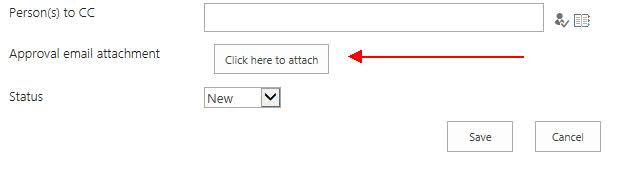
SharePoint custom list form with custom attach file button

I had a requirement where user wanted to attach a file to list item. Well, that's normal thing for user and easy too but they do not want to click the "Action file" button at Ribbon.

User wanted a button on list form to attach a file !!!!!!!!!!!

Being a master in jQuery, I thought I would be able to grab the click function and assign it to custom button. I was trying trying trying..... > <  Uuh ! No use with several tricks performed. 

Later I came across a SharePoint javascript function "UploadAttachment()". Boooooooom ! It's done.
Very easy solution. 

<input type="button" value="Click here to attach" onclick='UploadAttachment()'></input>

Custom list form: