Showing posts with label SharePoint 2013. Show all posts

Thursday, December 22, 2016

SharePoint Online: JS Link not working

What is it?
You might be wondered why your JS link stopped working today (22-Dec-2016). It was working well till yesterday.
Maybe Microsoft broke with their usual untested code. Uuh!
This is very bad. Microsoft breaks SharePoint Online at least >3 times in a month.
Please Microsoft, we (IT) are getting blame from every business.
My assumption is, Microsoft does not do Regression testing well.

Coming to the error, Here's what happens;
I am styling the list view using JS link. Till yesterday it was working. Today it stopped.

Why?
It's because, it is looking for the resource on https://static.sharepointonline.com
Whaaaaaat !!!!!!!!!!

eg: https://static.sharepointonline.com/bld/_layouts/15/16.0.6008.1206/sites/devsite/siteassets/js/structuregd.js

When I paste the full URL on JS Link text box, it truncates the domain part upon saving.
Eg: https://devtenant.sharepoint.com/sites/devsite/siteassets/js/structuregd.js is being saved as /sites/devsite/siteassets/js/structuregd.js

Till yesterday it used to save the complete URL.

Warning: Do not edit the existing web parts that uses JS Link. Create a new page for testing.

I have created the Microsoft support ticket and awaiting their response. Will update this post once I get it.

===================================================================
Update from Microsoft Support:
"Product team might be working on SPO environment like deploying new features. That may have caused the issue. we will let product team know about this issue."
Workaround:
Use ~site token while referencing the JS file.
Eg: ~site/SiteAssets/js/structuregd.js

Thursday, July 14, 2016

SharePoint 2013 / SharePoint Online Create multiple Pages library

My requirement was to have separate Pages library for categories. 
So, I took the Pages library template and tried to create a library using the template. SharePoint throws an error. 

I contacted Microsoft Support team and they confirmed that a site cannot have more than one Pages library. 

Today I accidentally found a way to accomplish that. This post lead me to this. 

We can select the Page template while creating Document library. 

SharePoint 2013 / SharePoint Online Create OneNote document library

SharePoint provides very easy way to accomplish many business requirements. But we, developers, always think advanced solution that takes lots of effort.
One of the example is Document library for OneNote.

I started thinking to have content type with template and etc.,

And found out the easy way.

1. Click Add an app

2. Choose Document Library 
3. Click Advanced Options

4. Select Document Template as "Microsoft OneNote 2010 Notebook"
5. Click Create.

That's it !!!!!


Friday, July 8, 2016

SharePoint Library settings is missing in new look and feel

I was introduced to new look and feel in SharePoint Online (SharePoint 2013 version) for document library on a Team site. At first I was like "Wow !" then it turned me down.

I wanted to go to Library Settings. I thought it should be under the Ellipsis (3 dots) button. When I clicked on it, I was shocked. Because;
Just "Alert me" !!!!!!!! Don't Panic !

After spending lot of time, then I found it !
Yes, they moved it to the Gear icon on topmost ribbon. This is meaningless (for now)!


Also I noticed, the gear icon menu is dynamic, based on the page we are in. 
Hope it is useful to someone.

Tags: SharePoint Online, SharePoint 2013, library settings menu is missing, 

Tuesday, April 19, 2016

SharePoint 2013 CSS not working in custom html page layouts

I have been customizing a SharePoint 2013 site, not in SharePoint 2010 way where we just copy paste the aspx file and edit it. I use Design Manager feature for branding the Master pages and Page layouts.


Once we create a page layout using Design Manager, a HTML file will be created. Then we open that HTML file using SharePoint Designer 2013 and edit it.

I faced an issue on editing the HTML page layout file. I wanted to hide the page title but failed !!!!!
This is what I did. I found the ID of the HTML tag and applied CSS inside the HTML page layout file.
After refreshing, I still see the page title. Because SharePoint 2013 appends CDATA where browsers ignore while rendering.

<style type="text/css">//<![CDATA[
.ms-long
{
   width: 100%;
}
//]]></style>

I tried many things and gave up. Then decided to create a page layout in SP 2010 way.
But lastly I wanted to try couple more times and found the solution.

This article helped me. https://msdn.microsoft.com/en-us/library/jj822367.aspx

In SharePoint 2013, the branding is completely different. We need to use the Design Manager Snippets. Therefore the above CSS should be rewritten as;

<!-- MS: <style type="text/css">-->
<!--
.ms-long
{
   width: 100%;
}
-->
<!-- ME: </style>-->

It worked !!!!! Happy day :)

Tuesday, February 23, 2016

SharePoint 2013 / SharePoint Online Search on custom columns

Requirement:
SharePoint Online search results should display results even if user typed keyword matches custom column value.

My Action:
I told business users, "Yes, we can do it". All were happy. Once I implemented the solution, I could not see the results. :( Very bad.

What I tried:
- I went to Site settings, under Site Collection Administration -> Search Schema
- I searched for managed properties which are created by SharePoint.
  ["SharePoint creates one when we create a column" - I believe so]
- In my case, I was looking for "Document Category" and it showed me  "DocumentCategoryOWSTXT"
- I edited that property and mapped my custom column
- Since it is SharePoint Online, I waited for one day to see the results.
- Next day i tried search items but no luck. Surprised !

I have went with so many alternate approaches but failed.

The Fix:
Suddenly I got an idea and i tried it. It Worked !!!!! :) Here's it;
1. Create new managed property and map the custom column
   - Go to Root level site settings
   - Look for "Search Schema" under Site Collection Administration and click it
   - Create a new managed property for the column you want to map it
      [In my case, I created "DocumentCategoryCustom" and selected the checkboxes of Searchable,     Queryable and Retrievable]
   - Map the custom column
     [In my case, I want to map the sub site's custom column "DocumentCategory". The column name was showing as "ows_DocumentCategory" in root level. I mapped it.]

2. Reindex Site
    - Go to Site settings
    - Look for "Search and Offline Availability" under Search
    - Click on Reindex Site

That's it !!!!!

[Later I came to know that this is a known issue and Microsoft's backend team is working on it. ]

Wednesday, November 11, 2015

SharePoint 2013 / SharePoint Online Display Templates missing

Microsoft has introduced Display Templates in SharePoint 2013 which is very powerful.
I ran into an issue with it.

User: I could not find my search results. It is showing error on all my search terms

I looked into it. The error message was;

Display Error: The display template had an error. You can correct it by fixing the template or by changing the display template used in either the Web Part properties or Result Types.

Template '~sitecollection/_catalogs/masterpage/Display Templates/Search/Control_SearchBox.js' not found or has syntax errors. (LoadTemplate: )

I got a point after seeing this error. I went to Site collection feature and checked whether the feature "Search Server Web Parts and Templates" is activated or not.

It is Activated !!!!!
Then I went to Site settings -> Web designer galleries -> Master pages. I am surprised to find the folder "Display Templates" is missing.

This issue will be resolved if you Deactivate and Activate the feature.

But I fixed it by other way. ;) I copied the folder "Display Templates" from other site collection and pasted it in reported site. Boom ! It worked ! 

Wednesday, September 30, 2015

SharePoint 2013 Send email to multiple users in designer workflow


Requirement: We need a form with fields Title, link, attachments and cc users. On form submit, an email notification should be sent to submitted user and CC to "CC Users"

Developer Solution:
1. Create a list / app with fields;
                                 Title - Single line of text
                                 Link - Hyperlink
                                 Attachments - OOTB
                                 CC Users - Person or Group (Allow Multiple)
 2. Create a designer workflow attached to that list

End Result: NO !!!!!!!!!!!!!!!!!!!

What Happened: If multiple users are present in "CC Users" column then SharePoint designer workflow sends an email to only ONE user. This is a major limitation in SharePoint.

Microsoft Support Response: If you want to send an email to dynamic multiple users then use either mention a group in people column or create a text column and enter the user's email address.
https://support.office.com/en-in/article/Send-e-mail-in-a-workflow-11d5f9dd-955f-412c-b70f-cde4214204f4

Developer Reaction: Whaaaaaaaaaaaaaaaaaaaaaaaaat !!!!!!!!!!!! :@

=======================                           ====================

Not to worry. I have found out a solution for this.

My Investigation: In SharePoint 2013, Once the name is resolved in people picker, DIV element is added dynamically with the ID "divEntityData". There is an another div inside it with the attribute "data". If you look at it carefully, you will see a XML with key-value pair nodes. It contains all necessary information like Title, Department, SIPAddress, Mobile and Email. I have attached a sample below [removed few keys since it is confidential ;) ]. That's it !!!!!!!!!!!! We can make use of it.

<ArrayOfDictionaryEntry xmlns:xsd="http://www.w3.org/2001/XMLSchema" xmlns:xsi="http://www.w3.org/2001/XMLSchema-instance">
<DictionaryEntry><Key xsi:type="xsd:string">Title</Key><Value xsi:type="xsd:string">Contractor: SevalHub</Value></DictionaryEntry>
<DictionaryEntry><Key xsi:type="xsd:string">Department</Key><Value xsi:type="xsd:string">IT</Value></DictionaryEntry>
<DictionaryEntry><Key xsi:type="xsd:string">Email</Key><Value xsi:type="xsd:string">dmahendranme@gmail.com</Value></DictionaryEntry>
</ArrayOfDictionaryEntry>

Solution for the same requirement:
1. Create a list / app with fields;
                                 Title - Single line of text
                                 Link - Hyperlink
                                 Attachments - OOTB
                                 CC Users - Person or Group (Allow Multiple)
                                 ccinternal - Multiple line of text (Hide this column to users)

2. Customize the NewForm and EditForm pages.
    - Add custom CSS class to both fields
    [NewForm.aspx sample below. I have added ccemail and ccinternal CSS classes. You should not copy this code. I added it for your reference.]

<tr>
    <td width="190px" valign="top" class="ms-formlabel">
    <H3 class="ms-standardheader">
        <nobr>CC Users</nobr>
    </H3>
    </td>
    <td width="400px" valign="top" class="ms-formbody ccemail">
    <SharePoint:FormField runat="server" id="ff14{$Pos}" ControlMode="New" FieldName="ccusers" __designer:bind="{ddwrt:DataBind('i',concat('ff14',$Pos),'Value','ValueChanged','ID',ddwrt:EscapeDelims(string(@ID)),'@ccusers')}"/>
    <SharePoint:FieldDescription runat="server" id="ff14description{$Pos}" FieldName="ccusers" ControlMode="New"/>
    <span class="tip">Enter name(s) of person(s) to receive a copy of this request</span>
    </td>
</tr>

<tr class="ms-hidden"><!-- class="ms-hidden" is to hide our ccinternal field from end users -->
    <td width="190px" valign="top" class="ms-formlabel">
    <H3 class="ms-standardheader">
        <nobr>ccinternal</nobr>
    </H3>
    </td>
    <td width="400px" valign="top" class="ms-formbody ccinternal">
    <SharePoint:FormField runat="server" id="ff22{$Pos}" ControlMode="New" FieldName="ccinternal" __designer:bind="{ddwrt:DataBind('i',concat('ff22',$Pos),'Value','ValueChanged','ID',ddwrt:EscapeDelims(string(@ID)),'@ccinternal')}"/>
    <SharePoint:FieldDescription runat="server" id="ff22description{$Pos}" FieldName="ccinternal" ControlMode="New"/>
    </td>
</tr>

3. Place the below Javascript function in the page. If you are referencing .js then place it in that file.
    [jQuery is used]

function insertccemail()
{
    var emails='';
    $('.ccemail #divEntityData').each(function(){
        var x = $.parseXML($(this).find('div').attr('data'));
        var profiles = x.getElementsByTagName("DictionaryEntry");
        $.each(profiles, function (index, value){if($(value).find('Key').text()=='Email') if($(value).find('Value').text()!='') emails+=$(value).find('Value').text()+'; ';});
    });

    $('.ccinternal textarea').text(emails); // Used textarea because I have created Multiple line of text field for ccinternal

} // insertccemail - Ends


//alert(profiles[0].getElementsByTagName("Value")[0].childNodes[0].nodeValue);  - In Javascript. This alert sample which I tried for testing.

4. Call this insertccemail() function in PreSaveAction(). This PreSaveAction function should be placed inside the form only. You should not place it in .js file and refer it.

function PreSaveAction()
{
    insertccemail();
    if(ValidateFields()) //Never mind. ValidateFields() is a custom Javascript function to validate my fields on Save
       return true;
    else
       return false;
} // PreSaveAction - Ends

5. In designer workflow, refer the "ccinternal" column in CC field.


We are Creators.  Happy Thinking ! :)


Monday, September 28, 2015

SharePoint 2013 Get distinct values of a column in a list or library


I am sure you would have come across the requirement
"Get distinct values of a column in a list or library"

That's why you are here.

What a typical developer usually does for the same requirement;
In jQuery / C#:
- Retrieve the list items
- Create an array object
- Loop all list items
- Compare column value with array
- Store the value in array if there is no match

* I think it is very easy to get distinct values if we use LINQ. I have not tried it.

As always, I came across one application page "filter.aspx" when I was investigating the SharePoint OOTB sorting behavior. :)

What it does? 
- It uses the query string parameters ListIdFieldInternalName, ViewId, FilterOnly and Filter
- Processes and displays a drop down with only distinct values of that column

It works for all columns. I tried with even People/groups column. It's working !!!!!

How to consume those values? [My thought process]
- Provide necessary values for below url

http://<site collection url>/_layouts/15/filter.aspx?ListId={<GUID>}&FieldInternalName=<Column's Internal Name>&ViewId={<GUID>}&FilterOnly=1&Filter=1

Example: https://sample.sharepoint.com/sites/dev/_layouts/15/filter.aspx?ListId={0717D149-0B6A-4657-8DFE-A7A06251F086}&FieldInternalName=Class&ViewId={E1A01D7E-32BB-4AA2-88FC-EE630003AF94}&FilterOnly=1&Filter=1

- Make an ajax call
- Parse and Read the HTML response

* Using jQuery you can easily read the distinct column values

If you want to see the HTML structure of the page, copy and paste the url with all values needed in browser. You shall view the response using browser's developer tool.

Update: Nov 22, 2016
----------------------------
This is my function to parse the ajax response and retrieve the distinct values.
Make sure you have a div element on your page with style="display:none" and ID="tempdiv"
Most importantly do not forget to change the querystring values on url

function getUniqueNames(){
var uniqueNames = [];
$.ajax({
 url:_spPageContextInfo.webAbsoluteUrl+"/_layouts/15/filter.aspx?ListId={0717D149-0B6A-4657-8DFE-A7A06251F086}&FieldInternalName=Class&ViewId={E1A01D7E-32BB-4AA2-88FC-EE630003AF94}&FilterOnly=1&Filter=1",
 method: "GET",
 headers: { "Accept": "application/json; odata=verbose" }
}).then(function(response) {
  $('#tempdiv').html(response);
  $('#tempdiv').find('SELECT option').each(function(i,v){
   if($(v).attr('value')!='')
    uniqueNames.push($(v).attr('value'));
  });
  $('#tempdiv').html('');
});


SharePoint Read values from query string parameter


You will always be wanted to read Query string parameter values using javascript in SharePoint 2013 due to the App models.
I was digging internal files of SharePoint 2013 for an issue and accidentally found out inbuilt javascript function "ReadQueryParam" to read query string parameter values.

You can make use of it. No need to write custom javascript/jQuery functions. If you are not able to call it then copy and paste the below SharePoint's javascript inbuilt function in your application (either in .js file or in your page).

function ReadQueryParam(name) {
    name = name.replace(/[\[]/, "\\\[").replace(/[\]]/, "\\\]");
    var results = (new RegExp("[\\?&]" + name + "=([^&#]*)")).exec(window.location.href);
    return (results == null) ? "" : results[1];
}


Tuesday, September 8, 2015

SharePoint Hosted App error: This page can't be displayed

I did not get an opportunity to work on App model in SharePoint 2013 but I wanted to crack. I decided to give it a try from simple (I thought its very simple) SharePoint hosted app.

What I did;
- Opened Visual Studio 2013
- Created new project with template "Apps for SharePoint"
- Decided to deploy it without changing any code but without hitting F5 key
- Packaged the app

Then, what to do ? !!!!! I was wondering how to deploy the .app package manually.
Answer: "App Catalog".

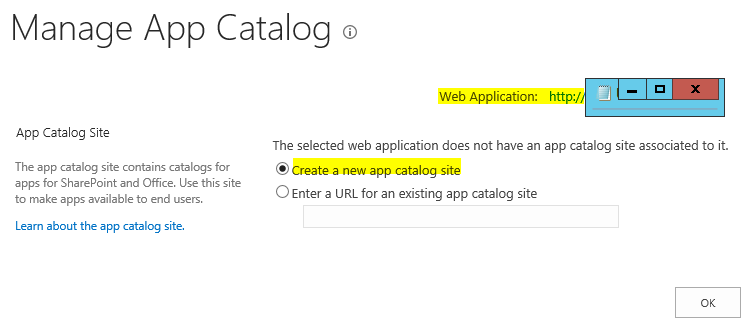
I created a App catalog for my web application because it was not created earlier.
To Create App catalog:
- Go to Central Admin (Farm admin login)
- Navigate to "Apps" from left hand side navigation
- Click "Manage App Catalog" under App Management
Manage App Catalog
- Create a new app catalog site. You must choose your web application. [App catalog is a separate site collection to hold apps.]
Create App catalog

- That's it !!!!!

I uploaded my SharePoint hosted app in newly created app catalog site. Then I went to my site and added the test app [Your app will be listed in your application on "Add an app" page].

After adding my test app, I clicked it. BOOM !!!!!
Error: This page can't be displayed

After research I found DNS is needed. I installed DNS on my DEV machine.
[We need to configure Forward lookup zones, CNAME after installing DNS. Refer: https://technet.microsoft.com/en-us/library/fp161236.aspx ]

I tested my app. Uuh ! Same error.
I gave up and decided to deploy the app from visual studio. I hit F5 and Blast ! Received different error in Visual studio saying it cannot install the app. Whaaaaaaat !

Then packaged and uploaded the app manually through app catalog.
Opened my app. Aaaaaah ! Now different error with correlation ID. I checked SharePoint logs and it was mentioned that "User agent not found......".
Does it need Secure Store Service ? !!!!! I don't know.
I checked my DEV machine and found that Secure Store Service was not created. I have created it and checked my test app. Brought the same error. :) "This page can't be displayed".

Thinking thinking thinking !!!!!

Somewhere I came across the word "hosts" file. I gave it a try.
[Before you proceed, you need to have app instance ID and app URL.]

To find App instance ID:
- Go to Site Contents
- Hover on your App and right click & copy the url
  (Looks like http://<your site>/_layouts/15/appredirect.aspx?instance_id={AAB6792E-0225-4CA0-9D68-BDD970E37ECB})
Instance ID; AAB6792E-0225-4CA0-9D68-BDD970E37ECB

To find App URL:
- Click on your app from your application. (It throws the error)
- Copy the URL from address bar
   (Looks like http://apps-91d6298c4b4348.<site name>/SharePointApp2/Pages/Default.aspx?SPHostUrl=.........)
URL: apps-91d6298c4b4348.<site name>

Edit Hosts file:
- Go to %systemroot%/system32/Drivers/etc
- Create an entry at last.
 
  127.0.0.1 apps-91d6298c4b4348.<site> # AAB6792E-0225-4CA0-9D68-BDD970E37ECB;http://<site>/
::1 apps-91d6298c4b4348.<site> # AAB6792E-0225-4CA0-9D68-BDD970E37ECB;http://<site>/

Ex:
Let's assume my web app is sharepoint and site collection is sharepoint:1425

127.0.0.1 apps-91d6298c4b4348.sharepoint # AAB6792E-0225-4CA0-9D68-BDD970E37ECB;http://sharepoint:1425/
::1 apps-91d6298c4b4348.sharepoint # AAB6792E-0225-4CA0-9D68-BDD970E37ECB;http://sharepoint:1425/

- Save the hosts file

Now opened my test app.
Hurray !!!!!!!!!!!!!

Success !

To consider:
1. App Catalog
2. Make sure the necessary service is running "App Management services and Subscription Settings".
3. DNS
4. Secure Store Service
5. Hosts file [We need to edit it since we are running the app in DEV where it has separate domain]

P.S: I'm lucky enough to get a plain DEV machine. ;)


SharePoint change context menu to other column instead of Title column in View pages

In SharePoint, we can create new View for Lists and Libraries and select the columns that we want to show.
Most of us do not use Title column in List / Libraries. Therefore in views, we use to hide the Title column and SharePoint OOTB provides the context menu for Title column.
Then how does the business user handle the item without context menu !!!!!!!!!! ?

Solution: We need to customize the view in SharePoint Designer.

1. Open the view in Designer (Eg: AllItems.aspx)
2. Goto view and identify your column. Here I have chosen "CustomColumn".
3. Add the below lines inside FieldRef of that column.

LinkToItem="TRUE" LinkToItemAllowed="Required" ListItemMenu="TRUE"

4. Save the view. That's it !!!!! :) 

Friday, June 26, 2015

SharePoint custom list form with custom attach file button

I had a requirement where user wanted to attach a file to list item. Well, that's normal thing for user and easy too but they do not want to click the "Action file" button at Ribbon.

User wanted a button on list form to attach a file !!!!!!!!!!!

Being a master in jQuery, I thought I would be able to grab the click function and assign it to custom button. I was trying trying trying..... > <  Uuh ! No use with several tricks performed. 

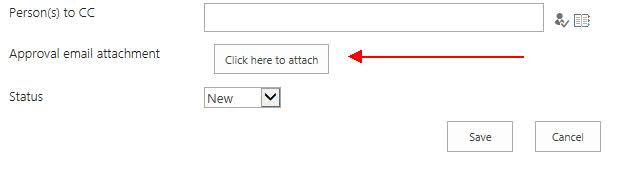
Later I came across a SharePoint javascript function "UploadAttachment()". Boooooooom ! It's done.
Very easy solution. 

<input type="button" value="Click here to attach" onclick='UploadAttachment()'></input>

Custom list form: